Gaining Access to Equipment
Equipment Location: SMF Shriram Center, Rm 099
General Training
Trainer: Dr. Jeffrey Tok (jbtok [sticky] stanford [bot] edu)
- Set up your Badger Account (Instructions) before attending the orientation
- Sign up for the general SMF training(60min): SMF training sign up
|
|
Instrument Specific Training
Trainer: Yuran Shi (yuran [sticky] stanford [bot] edu)
- Subscribe to the Rheometer-DMA mailing list (link)
- Watch the two required videos and read the document covering the chiller and rheometer instructions.
- For DMA mode operation, watch the additional TA Instrument Tech Tips videos regarding different clamp geometries.
- Read the chiller instruction document
- After reviewing the materials, complete the quiz: DMA Training Quiz
- The quiz contains a question asking whether you have any questions about setting up your experiment. This is a good opportunity to discuss your sample’s material, dimensions, and overall suitability for testing with the DMA rheometer.
- Email the trainer with answers to the following questions:
- Have you completed SMF orientation with Dr. Jeff Tok?
- Do you have a valid Badger account?
- What is your home lab? Are you undergrad,grad,post-doc?
- Sign up for instrument specific training: DMA-Rheometer training sign up
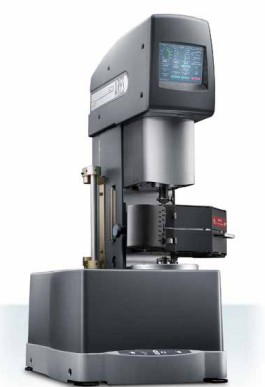
If needed, refer to the official training document for additional information on the rheometer training.
System Preparation
- Turn on the air supply of the rheometer.
- This must be done first before powering on the rheometer.
- The bottom plate should spin freely once the air is on.
- Set up the chiller (if required)
- After powering on, wait 15 minutes for the machine to purge.
- Purge state: chiller off, air on, instrument on, oven closed and in the correct position so that air flows through the chamber.
- Then, turn on the chiller and allow 60 minutes for internal cooling before use.
- Log into Badger and start the PC.
- Launch the control software TRIOS and connect to the rheometer.
|
Mini: PHP-GD image library not found. Exiting.
|
Installing Mount Geometries & Calibration
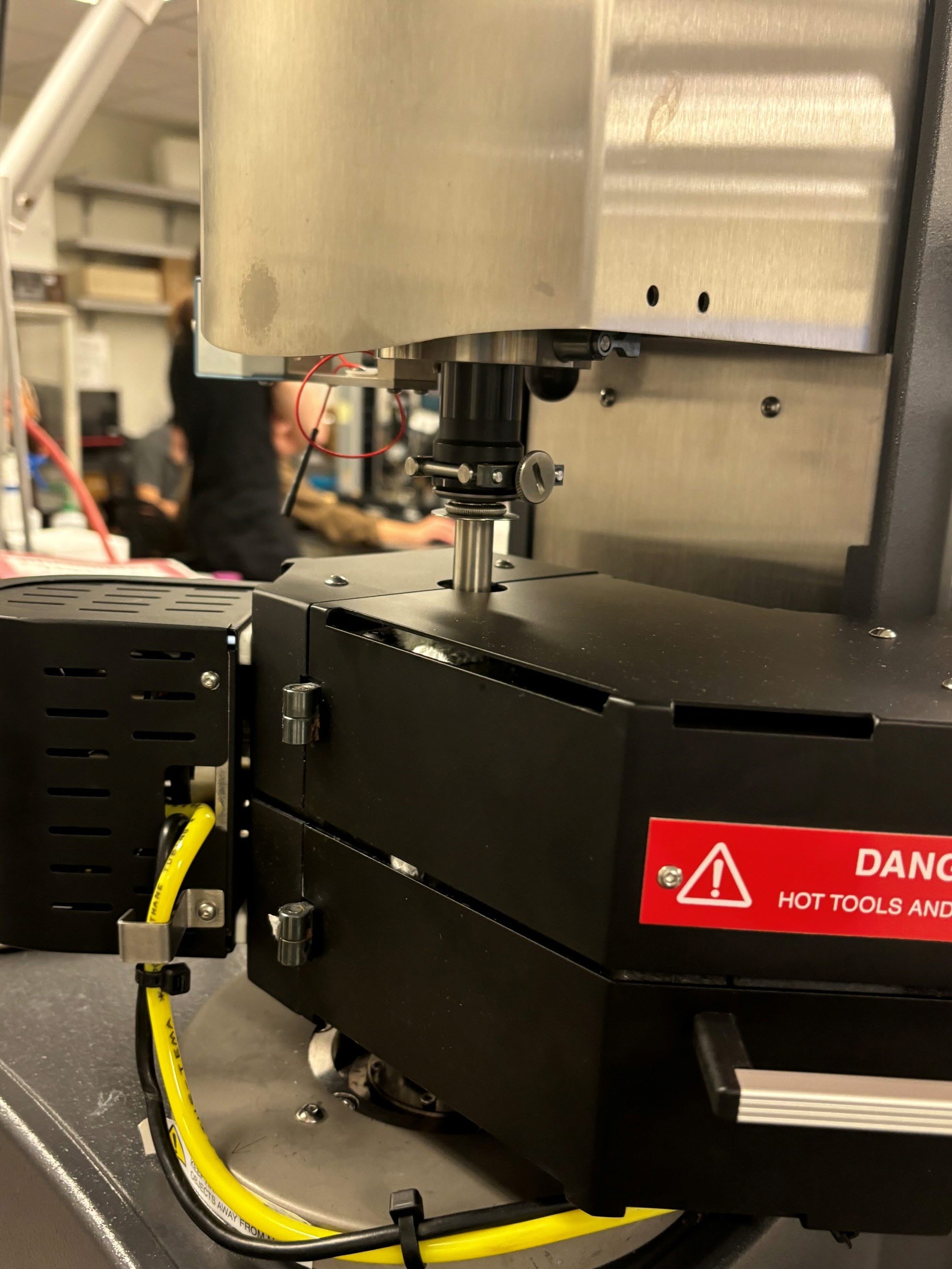
- Install the upper mount geometry by aligning the grooves of the geometry with the transducer rods, then screw it in securely.
- Install the lower geometry using the same method.
- Insert the rectangular alignment tool between the clamps and set the alignment position.
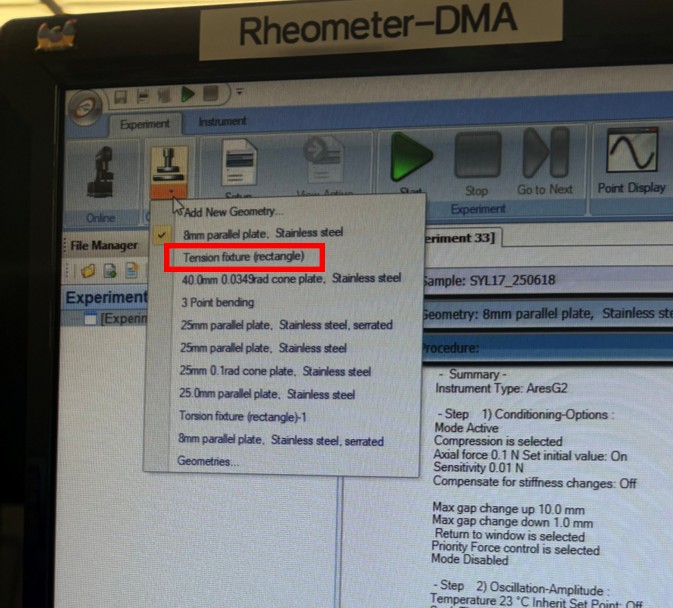
- In TRIOS, Navigate to Geometries in the left panel → select Tension Fixture (Rectangular) → read the alignment position (do not change the mass calibration).
- You can return to this alignment position anytime by going to the Motors tab and selecting Move to Alignment Position.
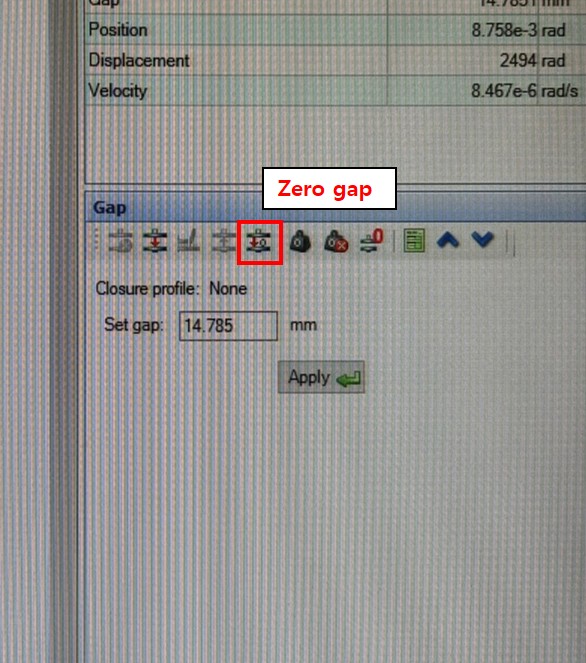
- Remove the alignment tool and zero the gap.
- On the rheometer keypad, press the Stage Down button to move the top geometry down until it is close to the bottom geometry.
- Press the Zero Gap button to zero the gap between the clamps.
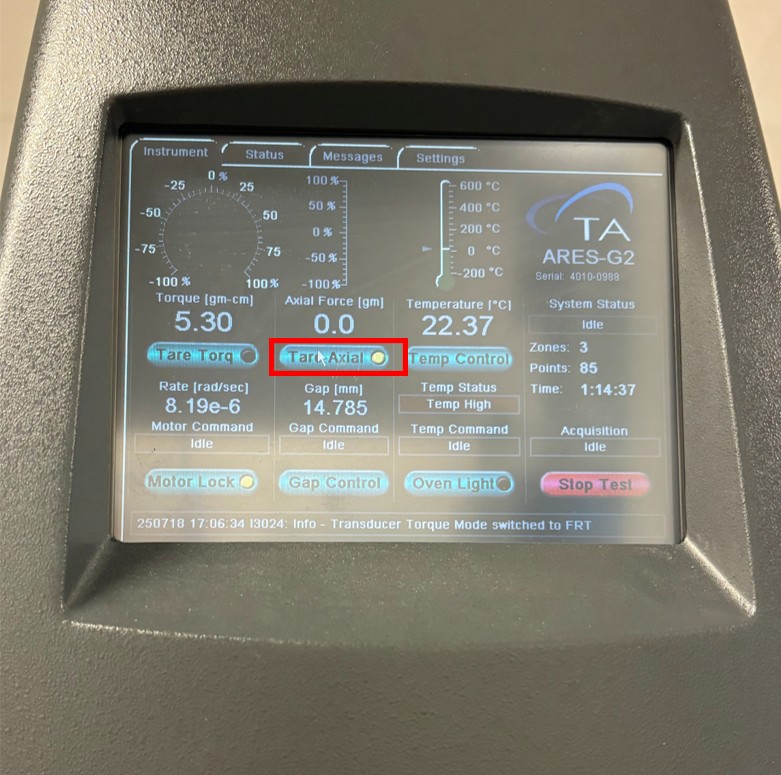
- Zero the axial force using the tare function on the machine’s control panel, ensuring no sample is loaded.
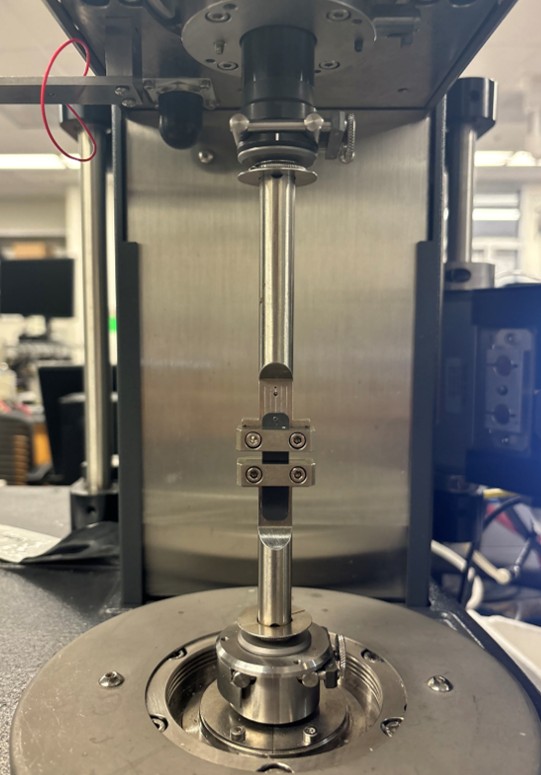
- Load the test sample into the clamps, while using the torque screwdriver to apply even clamping pressure. The correctly loaded sample should look like this.
- After the sample is clamped, adjust the gap until the force reading on the rheometer display returns to zero (zeroing the axial force before taking measurements).
|
Mini: PHP-GD image library not found. Exiting.
Mini: PHP-GD image library not found. Exiting.
Mini: PHP-GD image library not found. Exiting.
Mini: PHP-GD image library not found. Exiting.
Mini: PHP-GD image library not found. Exiting.
|
Experiment Procedure Setup
- Set up the sample ID, file name, and file path on the central panel.
- Select the geometry to be used and adjust the corresponding parameters. For the sample length, input the current gap dimension (not the actual length of the sample).
- Configure the experiment and set the test parameters in the Procedure tab.
- Start the test by clicking Start on the top toolbar.
Post experiment
- After completing the test, unload the sample.
- Remove the top and bottom clamp geometries and return them to the drawer.
- Export your data as a PDF if graphs are needed. Use a portable USB drive to transfer data files from the lab computer to your own device. ( PDF files are not exported automatically. Only txt files with the procedure set up and recorded data point values are saved.)
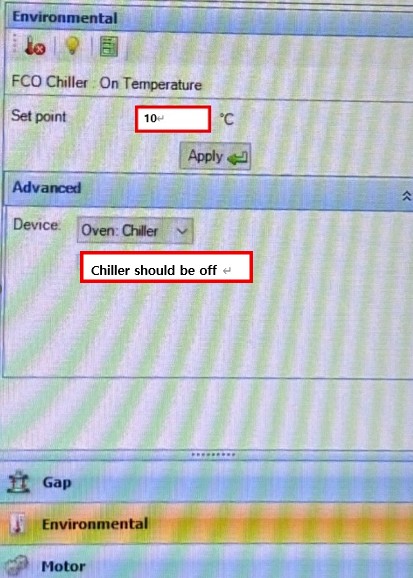
- Close TRIOS, turn off the chiller, and reset the chamber temperature to 10 °C through the Environment tab on the right.
- Disable the tool and Log out of Badger.
|
Mini: PHP-GD image library not found. Exiting.
|